
Settings
Security
Instance-level security policy — sessions, lockout, password history and expiration.
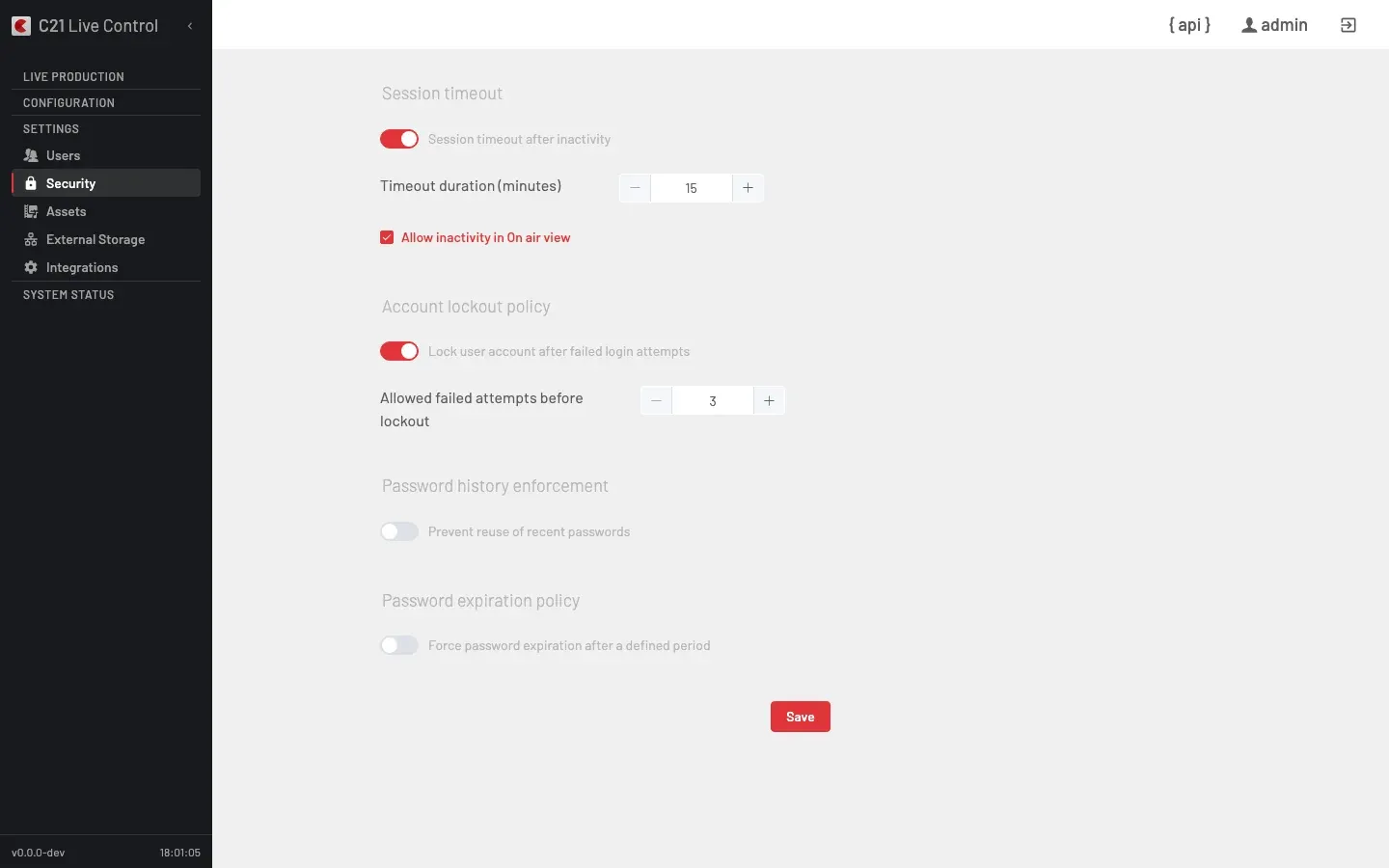
What you see
The Security page (entry Settings → Security in the sidebar) groups the instance security policy into four blocks. The audience is the System Administrator role; Operators do not see this page.
Each block carries an enable toggle + a numeric input. The platform enforces the configured rules at user creation, password update and sign-in time.
| Block | What it controls | Range |
|---|---|---|
| Session timeout | Maximum inactivity time before the session expires. A separate checkbox (Allow inactivity in On air view) lets you keep the On air endpoint alive even when the operator is not interacting. | 15–60 minutes |
| Account lockout policy | Consecutive failed sign-ins before the account is locked. The lock surfaces as SECf017 and only a System Administrator can unlock. | 3–10 attempts |
| Password history enforcement | Depth of the recent-password history. The policy rejects reuse within that window with SECf019. | 3–10 entries |
| Password expiration policy | Window after which a password must be rotated. | 1–999 days |
How it is updated through the API
The page persists the settings via:
| Action | API operation |
|---|---|
| Read the current policy | getSecurityPreferences |
| Update the policy | updateSecurityPreferences |
CRUD requires the System Administrator role. See API → Authentication for the bearer-token lifecycle used by callers.
Cross-links
- Users — the account catalogue and how the password policy is enforced.
- Licenses — the licence model and how a license file is uploaded.
FAQ
Existing sessions keep their remaining time under the previous policy; the new timeout applies to sessions that start after the change.
Yes. A System Administrator opens the account under Users, sets Active to
0 and back to 1. The account is ready for a new sign-in.The UI does not surface an advance warning in this release; the password expires on the first sign-in after the window, and the user must rotate it before continuing.