
Overview
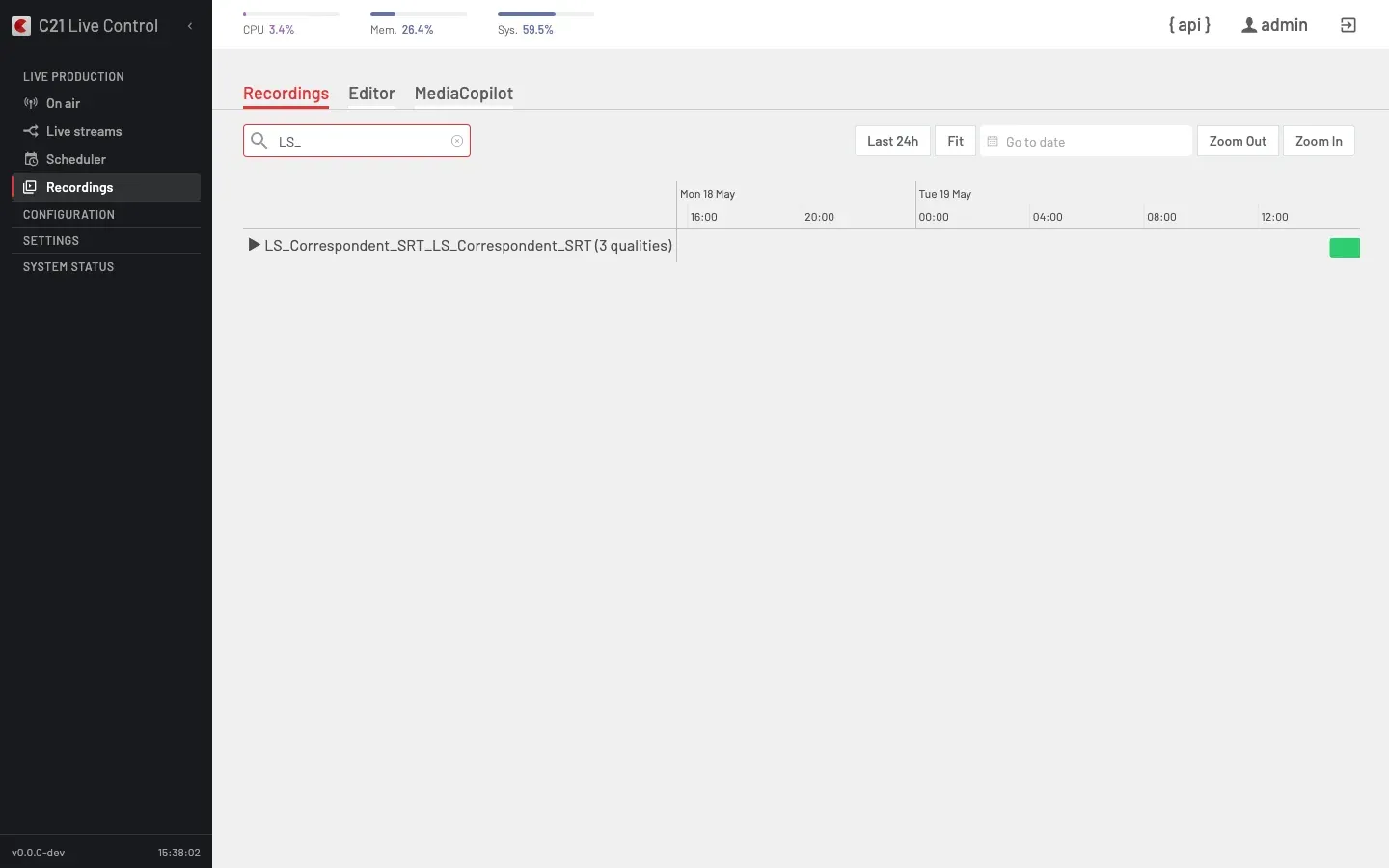
What is a Recording
A Recording is the captured output of a Live stream stored for VOD. Recording is enabled by attaching a Record-type Destination to one of the Destination groups bound to the Live stream — there is no separate on/off flag on the Live stream itself. When the Live stream is on air, the Record Destination writes the capture in lockstep with the rest of the bouquet; when the Live stream stops, the Recording closes.
Recordings are independent objects: deleting the bound Live stream does not delete its Recordings, and a single Live stream produces one Recording per run.
How to navigate
The Recordings section carries three tabs in the top bar: Recordings (listing and timeline), Editor (clip cutting — see Editor) and MediaCopilot (asset delivery — see MediaCopilot integration).
Listing
The Recordings list renders as a timeline. The left rail lists Recordings grouped by the Live stream that produced them, with the rendition count in parentheses. Each row expands into its individual renditions (bitrate per rung). The right rail draws one bar per Recording on a date / hour axis — green for Recordings in progress, grey for finished ones. The toolbar exposes the Last 24h · Fit · Go to date · Zoom Out · Zoom In controls plus a name search.
The list and the Recording Details panel expose the following data-model fields:
| UI label | Underlying field | Description |
|---|---|---|
| Name | name | Stable identifier for the Recording. |
| Channel | livestreamId (resolved by the UI to the bound Live stream and its source Channel) | The Live stream that produced the capture. |
| Quality | qualities | Renditions captured, surfaced on the timeline as the bitrate per rendition (for example 1200 kbps, 2400 kbps, 4000 kbps). Legacy resolution-label values (480p, 720p) no longer apply. |
| Start | started_at | ISO-8601 UTC start timestamp. |
| End | ended_at | ISO-8601 UTC end timestamp, or null while the Recording is still being written. |
| Duration | duration_seconds | Total captured duration. |
| Size | size_bytes | Total size on disk. |
| Remote folder | remotefolder | Optional remote staging folder. |
Actions
Recording actions surface as:
| Action | Effect |
|---|---|
| Edit | Open the Recording in the Editor tab. |
| Download | Available via GET /c21apiv2/recordings/download (operationId downloadRecordings). |
| Delete | DELETE /c21apiv2/recordings/{recordingName} (operationId deleteRecording). Blocked while ended_at is null (the Recording is in progress). |
API listing
The canonical listing endpoint is GET /c21apiv2/recordings. The response shape varies across server-side versions — verify the installed version returns the expected list before relying on it in automations.
Retention
Retention is configured on the Record-type Destination as delete after (days). The encoder honours that value when it purges expired captures.
When the delete_after window elapses, C21 Live Control copies the Recording to the bound Remote Folder before deletion if one is configured. See Remote Folders for the storage model.
Cross-links
- Recordings editor for the in-browser cut and export flow.
- Live stream options for the per-Live-stream recording controls.
- Remote Folders — retention backup of Recordings to a network share.
- Target Folders — clip delivery destinations for the Recordings Editor.
FAQ
ended_at: null in that state). Stop the bound Live stream first; once the Recording closes, the delete action becomes available.ended_at: null) until the Live stream stops.ts, mp4, fmp4, audio). The cut and delivery pipeline executes via the editor's Export action.