
Start and stop
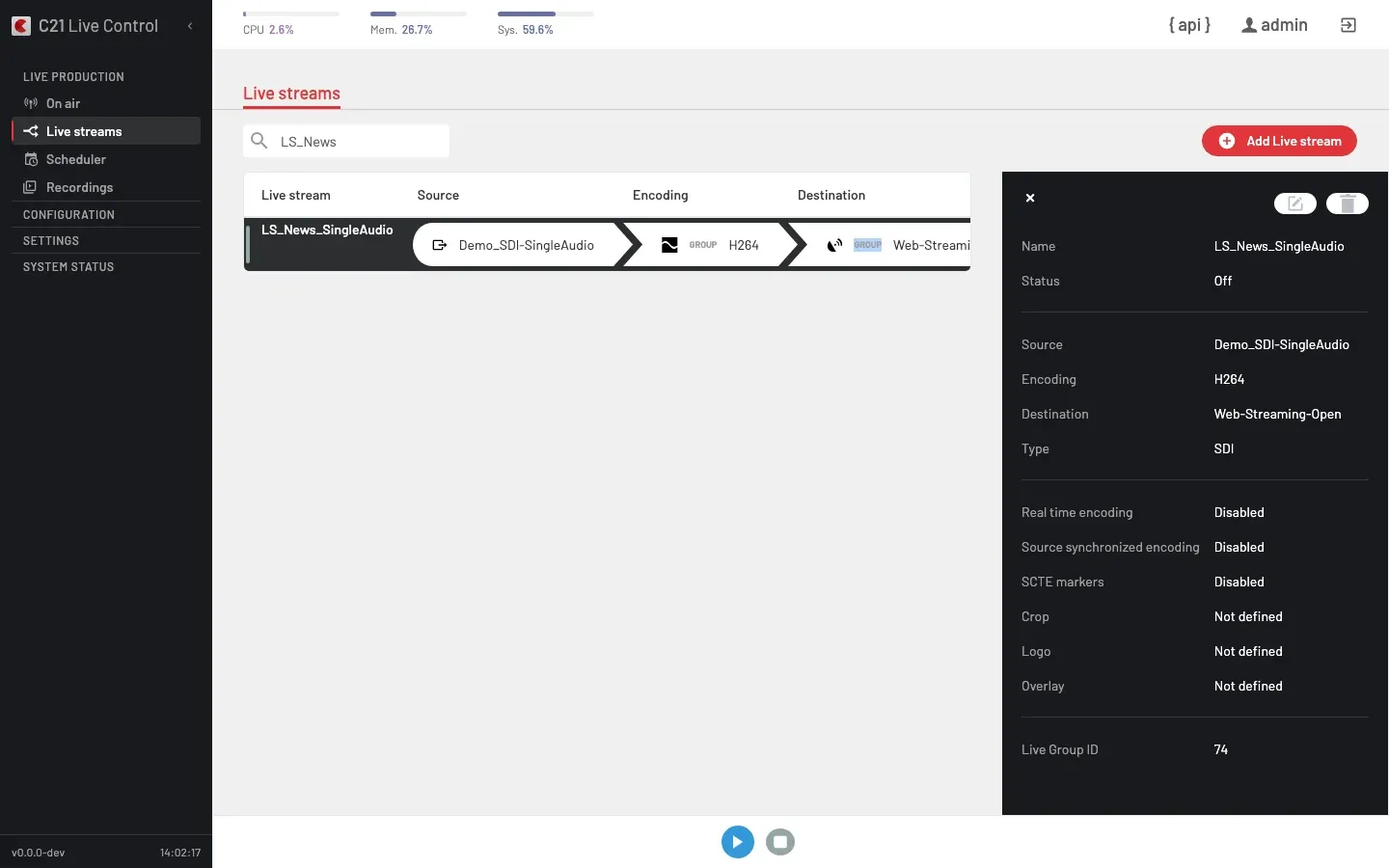
Starting and stopping a Live stream are the two most-used Operator actions. Both go through a confirm dialog, both are exposed from the On air row and from the Live streams list, and both can be driven against the public API.
Lifecycle
The runtime status follows the LiveStream.status enum:
status | Meaning | UI |
|---|---|---|
0 | Off | The status panel reads "Off". The editor is unlocked. |
1 | Live | The status panel reads "Live". The editor is locked. |
LiveStream.status is binary. The encoder's runtime health is reported separately on LiveStream.errorstatus — see Live streams overview for the mapping.
Manual start
Open the Live stream
Select the Live stream from the Live streams list or the On air view.
Confirm
The confirm dialog reads "Do you want to start this Live stream?" with the primary action "Start Live stream" and the secondary action "Cancel".
Bring the encoder up
C21 Live Control resolves the encoder group, applies startConfig[] and brings the pipeline up. The UI surfaces a "Live stream started" toast once the start has been accepted. The runtime status transitions through starting (1) and lands on running (2); the on-air row arrows reflect each entrypoint coming up.
API equivalent
The same flow drives the startLivestream operation. Clients should first call getLivestreamStartConfig to obtain a valid idEncoderGroup and the reconciled startConfig[]; the response also exposes a startAllowed boolean that gates whether the start can proceed. Send an Idempotency-Key header on the POST so retries do not duplicate side effects.
Manual stop
The stop flow mirrors the start flow. The confirm dialog reads "Do you want to stop this Live stream?" with the primary action "Stop Live stream". On confirmation C21 Live Control turns the runtime preview off and then stops the broadcast; the runtime status returns to 0 and the on-air row leaves the grid.
On the public API the equivalent operation is stopLivestream.
Scheduled stop
When the Live stream was started by a Schedule (automatic = true), the stop dialog carries a second line:
Do you want to stop this Scheduled Live stream?The associated Schedule will be deleted.
Confirming both stops the Live stream and deletes the Schedule that was driving it. To stop the Live stream without losing the Schedule, edit the Schedule from the Scheduler instead.
What is and is not exposed
- No public Restart operation. To restart a Live stream, stop it and start it again.
- No public dry-run start. Validation against the bound Channel, Encoding and Destination — including input and target compatibility — happens server-side at start time; failures land in the encoder logs.
- No public force-stop operation. A normal
stopLivestreamissues the stop; if a downstream destination is holding the teardown, that is reflected in the entrypoint indicator on the on-air row.
Input and target compatibility
At start time C21 Live Control checks that the Live stream's input type fits the encoder group it targets, and refuses the start with a specific error otherwise:
- On-prem inputs — SDI/ASI, AES-EBU, NDI, local file and YouTube Live — run only on an on-prem encoder group, never on a C21 Live Cloud target.
- Cloud inputs — RTMP push, UDP-R Cloud and SRT Cloud — run only on a C21 Live Cloud target, never on an on-prem group.
- Physical-capture inputs (SDI/ASI, AES-EBU) are wired to a specific Device. If the chosen on-prem group does not contain that Device, the start is refused and the error names the Device to use; the Start with options dialog locks the encoder selector to that Device.
StreamandSRTinputs are not constrained this way and start wherever their group allows.
These checks run server-side, so the same rules apply whether you start from the UI, the API or the MCP server.
Cross-links
- Live streams overview for the catalogue and editor.
- Live stream options for the runtime operations available while the broadcast is on air.
- Scheduler for time-bound start and stop.
FAQ
Record-type Destination.