
Scheduler
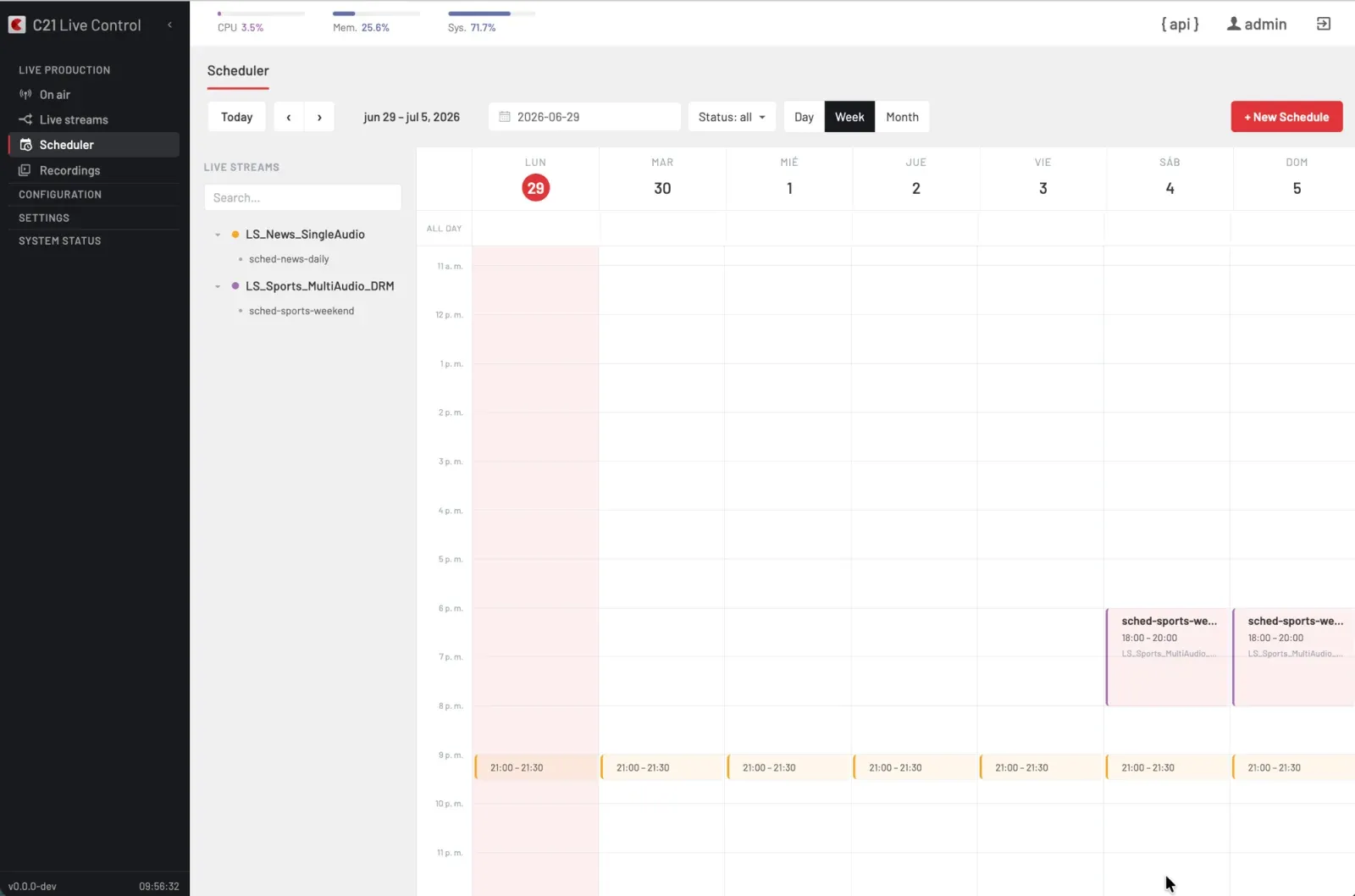
The Scheduler is the calendar view where Schedules are planned. Each Schedule binds a Live stream to a start time, an end time, an encoder Device (or Device group) and an optional recurrence. The Scheduler fires the start and stop transitions on the bound Live stream when the time comes.
What you see
The Scheduler page exposes:
- A toolbar with: the + New Schedule action (top right), the period navigation (
Todayplus the arrows), a date picker, the Status: all filter, and the Day · Week · Month view switcher. - A calendar grid that renders each Schedule as a coloured event on the time axis.
- An empty state — "No schedules found" — when the current view has no Schedules.
Creating a Schedule
Open New Schedule
Click New Schedule in the toolbar. The dialog is grouped into four blocks: Information, Date and Time, Recurrence and Live stream.
Information
Set:
- Name — the Schedule's display name.
- Live Stream — the Live stream the Schedule will drive.
- Enabled — disable the Schedule without deleting it.
Date and Time
Set the Start and End timestamps. The API rejects starts earlier than 10 minutes in the past, and the date pickers grey out earlier dates accordingly.
Recurrence
Pick one of the recurrence options. The set is exactly what the API exposes:
| Option | Meaning |
|---|---|
| None | One-shot, no repetition (default). |
| Daily | Repeats every day at the same time as Start. |
| Weekly | Repeats every 7 days from Start (every Monday if Start is a Monday — not "weekdays only"). |
| Workdays | Repeats every weekday (Monday through Friday). |
| Weekend | Repeats every Saturday and Sunday. |
The interval field of the recurrence is reserved for future use and currently treated as 1 regardless of the value sent.
Live stream block
The dialog surfaces the selected Live stream's bindings (Channel, Encoding, Destination) and exposes the Encoder / Encoder group picker plus the Master settings. Submitting the dialog persists the Schedule and lets C21 Live Control dispatch it when the start time comes.
Schedule status
Schedule.status is an integer:
0— pending (the Schedule has not fired yet).1— active (the Schedule has fired and is driving the Live stream).99— deleted.
A Schedule that is active also surfaces on the bound Live stream (automatic = true). Stopping a Live stream that was started by a Schedule shows the additional dialog line "The associated Schedule will be deleted." — see Start and stop.
Cancelling occurrences in a recurrence
A recurring Schedule produces one occurrence per repetition. You can cancel — or skip — a single occurrence without deleting the whole series. Click the occurrence on the calendar to open the Edit Schedule dialog and press Delete: the scope selector "Which occurrences do you want to cancel?" appears.
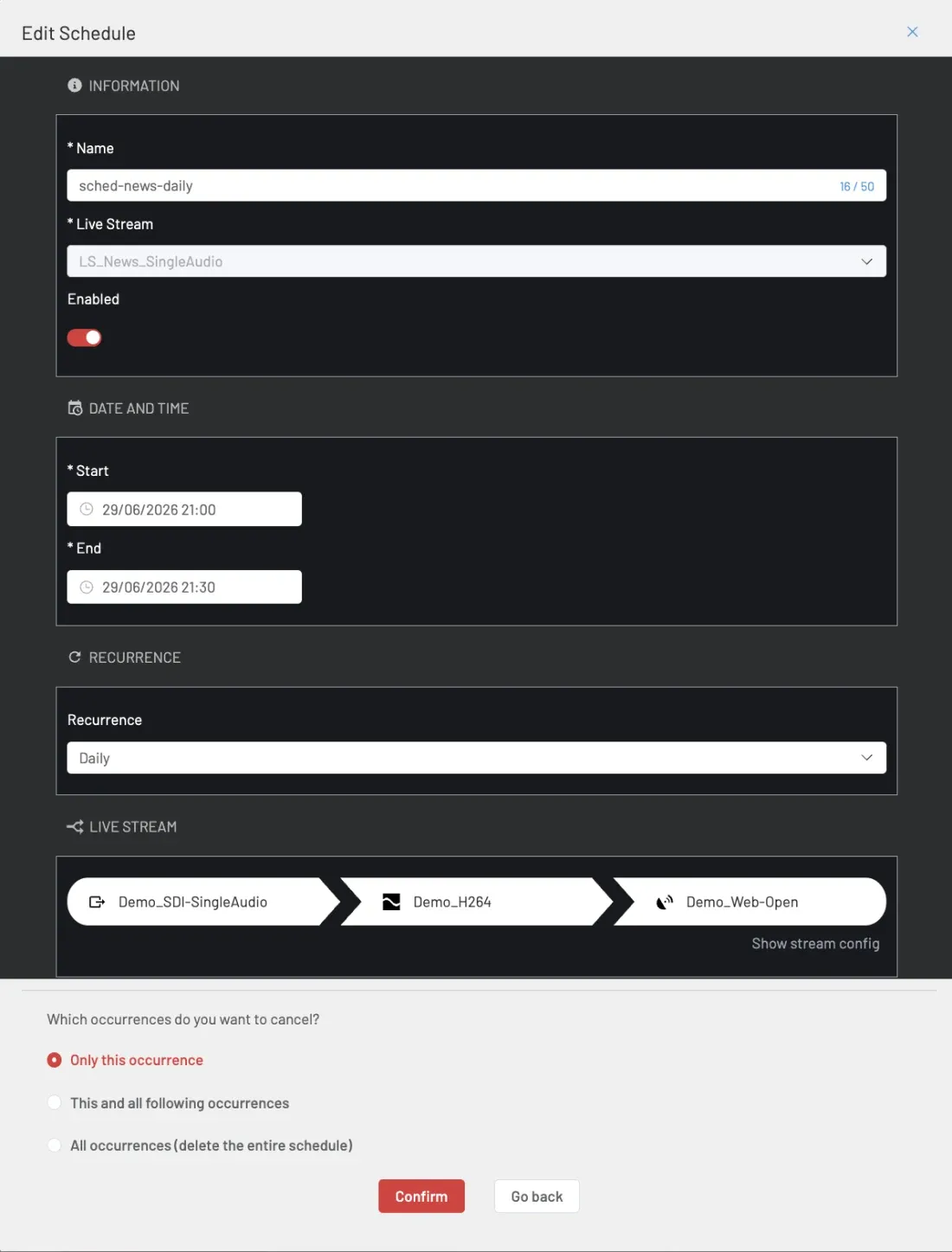
| Scope | Effect |
|---|---|
| Only this occurrence | Cancels just that date. It is reversible: the occurrence is marked as cancelled on the calendar (struck-through amber chip) and you can restore it while it is still in the future. |
| This and all following occurrences | Ends the series from that date onward. Earlier occurrences are kept; from the selected date on, nothing is scheduled. |
| All occurrences (delete the entire schedule) | Deletes the whole Schedule. It shows an extra confirmation — "Delete schedule "…"? This action cannot be undone." — and cannot be undone. |
Confirm with Confirm or dismiss the selector with Go back.
Restoring a cancelled occurrence
A cancelled occurrence that has not yet come opens a read-only view (Skipped Occurrence) with the notice "This occurrence was skipped" and a Restore occurrence button that returns it to pending. A skip that has already been consumed (a past date) cannot be restored: the dialog shows "This skip has already been consumed and cannot be restored.".
Cross-links
- Live streams overview for the bound entity.
- Start and stop for the dialog copy when a Scheduled Live stream is stopped.