
Editor
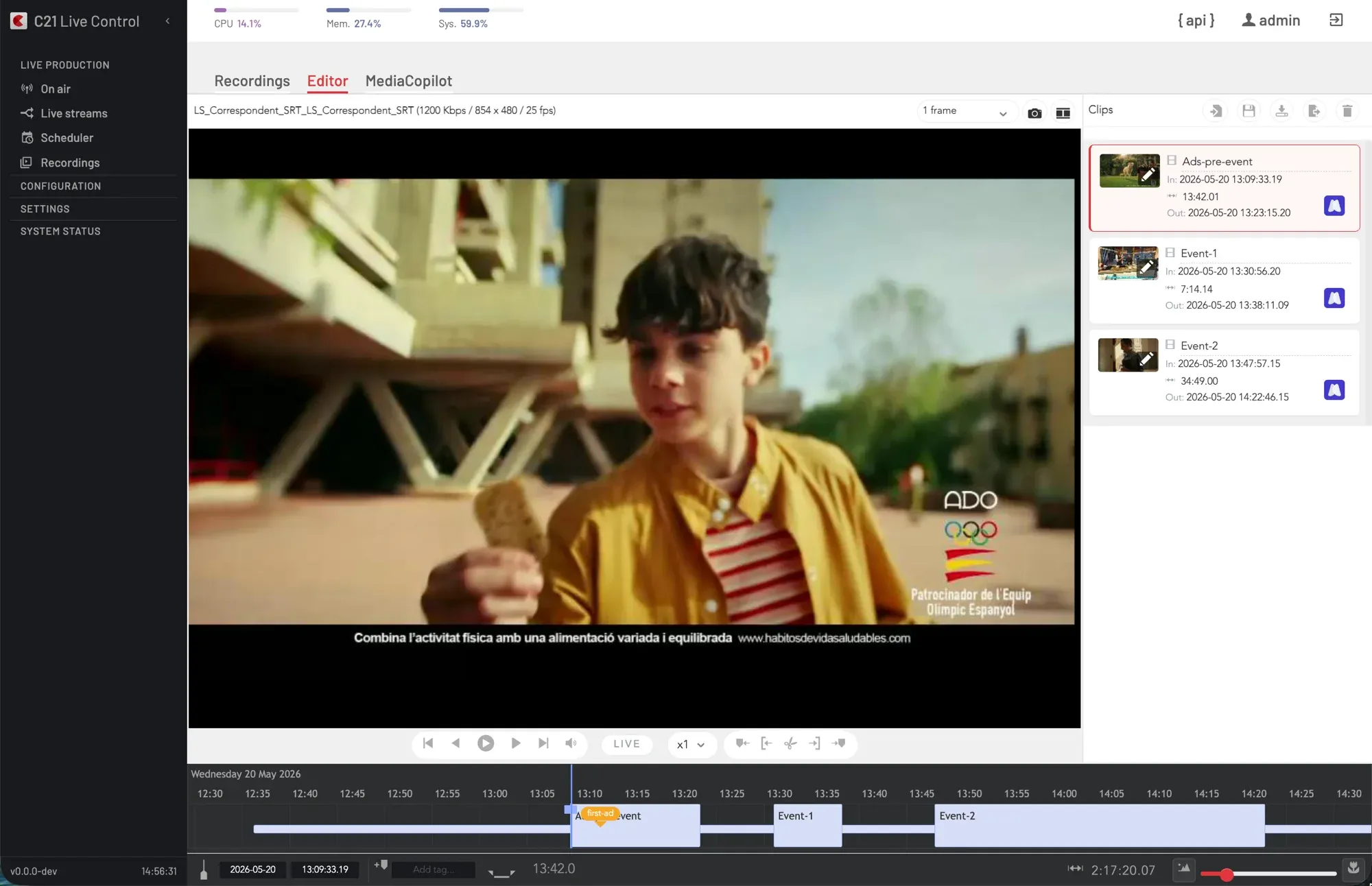
What the editor does
The Recordings Editor is the in-browser view bound to an existing Recording on the platform orchestrated by C21 Live Control. It is the path from a captured broadcast to a clip that can be downloaded, handed to MediaCopilot or pushed to an external storage target. The editor never modifies the source Recording; every export is a new derived artefact.
The editor can be opened on a Recording in any state, including while the Recording is still being written (the API exposes ended_at: null in that case).
The Editor tab and the underlying execute endpoint require the C21LiveEditor license on the Live Control instance. Without it the tab is hidden from the Recordings section and direct calls to the execute endpoint are rejected.
UI Interface
The Editor view exposes:
| Control | Purpose |
|---|---|
| Video preview | HLS-based preview of the selected Recording. |
| Timeline | Scrubable timebar with the current playhead position. |
| IN / OUT / CUT | Set the in-point, the out-point and create the clip; selecting an existing clip and pressing IN or OUT updates that clip's boundaries directly. |
| Clips panel | List of every clip defined on the Recording. Per clip: name, start, end, and Send to / Download / Delete actions. |
| Step selector | Frame-by-frame or one-second step granularity for the playhead. |
| Add tag | Point markers on the timeline. |
| Send to dialog | Format selector, target selector (FTP / SFTP / S3 / MediaCopilot), audio-track selection, DRM block, and optional XML metadata form (Title / Description / Destination / Category). |
Clips survive page reloads — the Editor persists them under a per-Recording key in the browser session storage and restores them on next mount.
How a cut is defined
A cut is the body of a single executeEditor request. The required fields are:
| Field | Notes |
|---|---|
quality | One of the renditions captured in the Recording (returned under qualities on the Recording). |
allbitrates | When true, the cut spans every captured bitrate; the result is delivered as a TAR. |
intervals[] | One or more { start, end, name? } ranges. start and end are timestamps. |
kfstart | When true, the cut snaps to the closest keyframe so the first segment is not re-encoded. |
concat | When true, intervals of the same bitrate are concatenated into a single output; otherwise each interval produces its own artefact. |
encoding | Output container — see the table below. |
command | Delivery target — see the table below. |
filename | Optional output filename. |
Output formats
The Send-to dialog exposes the following output formats:
encoding | Container | Notes |
|---|---|---|
ts | MPEG-TS | Single-rendition delivery. |
mp4 | MP4 | Single-rendition delivery. |
fmp4 | Fragmented MP4 | Single-rendition delivery; suitable for downstream packagers. |
audio | Audio-only | Strips video; selects the audio tracks per the audio block. |
Delivery targets
The Send-to dialog exposes one target at a time. The chosen command value activates the matching sub-object on the request body.
command | Target | Activates |
|---|---|---|
download | Operator's browser | Direct HTTP download — single file inline, multiple files as TAR. |
ftp | Remote FTP server | ftp sub-object. |
sftp | Remote SFTP server | sftp sub-object. |
s3 | S3-compatible bucket | s3 sub-object. |
exportMediaCopilot | MediaCopilot tenant | MediaCopilot-specific fields (sync, mc_model, mc_collection, mc_template). |
Each FTP, SFTP and S3 sub-object accepts the connection fields inline or — preferred — a single id reference to a saved Target Folder (cross-link below).
FTP and SFTP sub-objects
{
  "ftp": {
    "id": <target folder id>,
    "host": "<host>",
    "username": "<user>",
    "password": "<password>",
    "path": "<remote dir>",
    "filename": "<override filename>"
  }
}
sftp accepts the same shape plus an optional account identifier. When id references a saved Target Folder, the host, credentials and path are taken from the saved entry and the inline values may be omitted.
S3 sub-object
{
  "s3": {
    "id": <target folder id>,
    "aki": "<AWS access key id>",
    "sak": "<AWS secret access key>",
    "bucket": "<bucket name>"
  }
}
When id references a saved Target Folder, the credentials and bucket are taken from the saved entry. See Target Folders for the catalogue and the credential model.
Audio selection
The optional audio block selects which audio tracks the cut carries forward — useful for multi-language Recordings:
{
  "audio": {
    "pids": [<pid>, …],
    "languages": ["<lang>", …],
    "codecs": ["<codec>", …]
  }
}
Each member is independent; the editor matches tracks by any combination of pid, language or codec.
DRM on export
When the deployment serves clips protected at rest, the optional drm block attaches a registered DRM provider to the cut. Only valid in combination with packaging-aware outputs:
{
  "drm": {
    "provider": <provider id>,
    "content_id": "<hex content id>"
  }
}
content_id must be a hexadecimal value. See DRM workflow for the provider registration and the multi-system reach (Widevine, PlayReady, FairPlay).
XML metadata sidecar
When xml_enabled = true, the editor generates an XML sidecar from the configured template and delivers it alongside the video file. The metadata fields live on the chosen FTP / SFTP / S3 sub-object (or are submitted from the Send-to dialog's metadata form):
| Field | Purpose |
|---|---|
title | Clip title — defaults to the filename when empty. |
description | Free-text description. |
publishing | Destination identifier. |
category | Content category. |
The XML template itself is customised per deployment by the System Administrator at install time — operators only fill the fields above.
MediaCopilot export
command: "exportMediaCopilot" activates the MediaCopilot-specific fields. The two prerequisites carried over from the MediaCopilot integration page apply: a MediaCopilot account contracted through Cires21 plus the C21LiveEditor license.
| Field | Notes |
|---|---|
sync | true returns the assigned assetId synchronously; false returns a jobId and processes asynchronously. |
mc_model | One of turbo (default) or normal. |
mc_collection | Optional MediaCopilot collection id to assign the asset to. |
mc_template | Optional MediaCopilot template id to apply. |
When sync = false, poll the job via GET /c21apiv2/system/mediacopilot/jobs/{jobId} until it completes. The MediaCopilot target is offered on the Send-to dialog only when the integration has been configured under Integrations → MediaCopilot.
API surface
| Action | Method + path | operationId |
|---|---|---|
| Execute the editor | POST /c21apiv2/editor/{broadcastName}/{broadcastDetailName}/execute | executeEditor |
The full request body is documented above. The handler honours Idempotency-Key; replaying the same key returns the original response without re-cutting.
Minimal example — download an MP4 clip:
curl -X POST "https://<your-host>/c21apiv2/editor/<broadcastName>/<broadcastDetailName>/execute" \
  -H "Authorization: Bearer <YOUR_API_TOKEN>" \
  -H "Content-Type: application/json" \
  -d '{
    "quality": 4000,
    "allbitrates": false,
    "kfstart": true,
    "concat": false,
    "encoding": "mp4",
    "command": "download",
    "filename": "highlight",
    "intervals": [{ "start": 1747585200, "end": 1747588800, "name": "Goal 1" }]
  }'
Cross-links
- Recordings — catalogue of captures and retention policy.
- Live stream options — open the editor on the active Recording of a Live stream.
- Target Folders — register Target Folders for FTP / SFTP / S3 delivery.
- MediaCopilot integration — account model and prerequisites for the MediaCopilot export target.
- DRM workflow — provider registration for the optional
drmblock on export. - Cut a clip in the Editor and send it to MediaCopilot — step-by-step how-to.
FAQ
ended_at is still null; the cut is bounded by the segments already written at the moment the export is submitted.start and end timestamps and an optional name. With concat = true, intervals of the same bitrate are concatenated into a single output; otherwise each interval produces its own artefact.id from a saved Target Folder under Target Folders. Using a saved Target Folder is the recommended path — credentials are stored encrypted and the id is the only thing the request payload carries.