
Planned actions
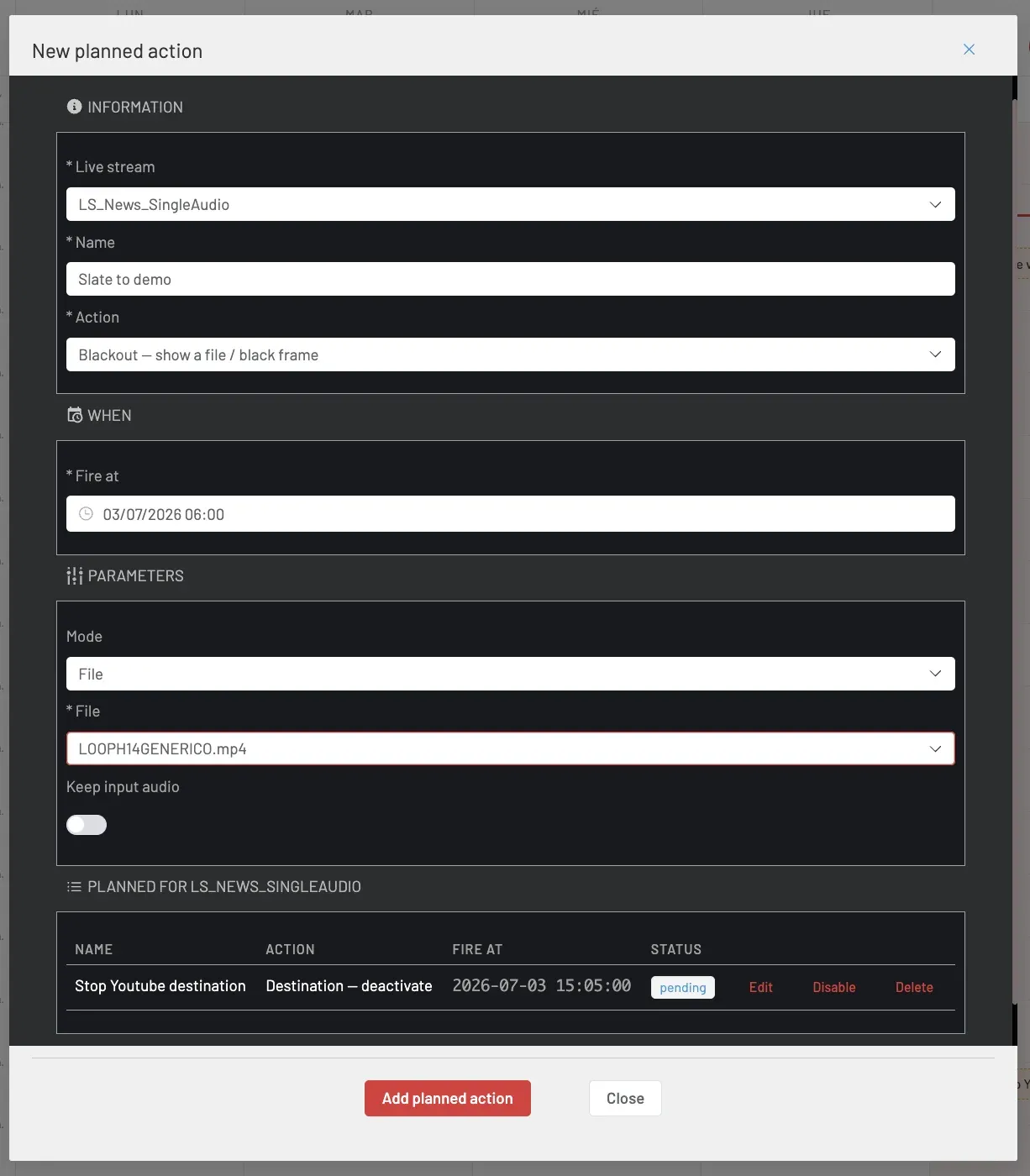
A planned action is a one-shot runtime operation deferred to a fixed instant on a Live stream that is already on air: activate or deactivate a Destination, apply or clear a logo, switch to or from a blackout, switch the input source, push a metadata value, or set ad values.
Planned actions compose with Schedules instead of extending them: a Schedule decides when a Live stream is on air; a planned action decides what changes during that window. Each action fires at most once — there is no recurrence. To repeat an operation, create several actions; an interval is a pair (for example, a blackout from 10:00 to 10:30 is a blackout on action at 10:00 plus a blackout off action at 10:30).
Every action is the deferred equivalent of a runtime operation you can also run immediately from the On air panel or its runtimeOptions/* endpoints — same parameters, same effect, only the moment changes.
What an action can do
The Action picker in the dialog offers nine operations. Each maps 1:1 to a runtime endpoint fired at the planned time:
| Action (UI label) | API command | Parameters | Effect |
|---|---|---|---|
| Destination — activate | publishing_on | entry_point_id | Engage a Destination of the broadcast. |
| Destination — deactivate | publishing_off | entry_point_id | Disengage a Destination of the broadcast. |
| Logo — apply | logo_on | filename, position (optional) | Apply a logo overlay from the Logos catalogue. |
| Logo — clear | logo_off | — | Clear the logo; the position is preserved. |
| Blackout — show a file / black frame | blackout_on | mode (File / BlackFrame), file (required for File), keep_input_audio (optional) | Replace the program with a file or a black frame. |
| Blackout — back to live | blackout_off | — | Return the program to the live input. |
| Source switch | source_switch | channel_id | Change the input Channel — the source switch eligibility rules apply at fire time. |
| Push metadata | metadata_push | name, value, type (optional) | Inject a metadata event (Metadata, CuePoint, DateRange, ID3Tag, CueIn, CueOut, ScteIn, ScteOut). |
| Set ad values | ad_values | default_ad_duration, max_ad_duration, next_ad_duration (at least one) | Set runtime ad-pod durations, in seconds. |
State-changing actions (Destinations, logo, blackout, source switch) are persisted on the Live stream when they fire — the applied state survives an encoder restart exactly like the equivalent manual operation. Metadata and ad-value actions are one-off pulses with no persisted state.
Creating a planned action
Open New planned action
In the Scheduler toolbar, click + Planned actions. The New planned action dialog opens.
Information
Set:
- Live stream — the running (or to-be-running) broadcast the action targets.
- Name — a display name (e.g. Evening cartela).
- Action — one of the nine operations above. The Parameters block appears once an action is chosen.
When
Set Fire at — the instant the action runs. The API accepts timestamps up to 10 minutes in the past (the same grace as a Schedule start); anything earlier is rejected.
Parameters
Fill the fields for the chosen action — for example Destination (a dropdown of the Live stream's Destinations), Logo file name and Position, the blackout Mode / File name / Keep input audio switch, the Destination channel for a source switch, or the metadata Name / Value / Type.
Submitting creates the action enabled — it will fire at its time unless you disable or delete it first.
Below the form, the Planned for … list shows the Live stream's pending actions with their Name, Action, Fire at and Status. When completed or failed actions exist, a Show all / Show pending only toggle reveals the recent history. Each pending row exposes Edit, Enable / Disable and Delete.
On the calendar
Planned actions render on the Scheduler's Week and Day views as dashed instant chips at their Fire at time — distinct from the solid duration blocks of Schedule occurrences. The colour follows the status: amber while pending, green when completed, red on error; a disabled action is dimmed with its name struck through. Clicking a chip opens the manager.
Lifecycle and rules
An action's status moves from pending to exactly one terminal state:
| Status | Meaning |
|---|---|
pending | Not fired yet. The action can be edited, enabled/disabled or deleted. |
completed | Fired and acknowledged. Read-only. |
error | Not applied — the Live stream was not on air, the execution window expired, or the operation was rejected. resultDetail carries the reason. Read-only. |
- The Live stream must be on air at fire time. An action whose broadcast is not running when its time comes ends in
error— it is never re-armed for a later start. - Execution window. An action fires within
[fireAt, fireAt + catchUpSeconds](catchUpSecondsdefaults to 120, accepts 0–86400). If the platform could not fire it inside the window — for example the Control host was down — the action expires toerrorinstead of firing late: a late blackout or ad cue can be worse than none. - Granularity. Due actions are picked up within the following minute of their Fire at time. Same-instant actions fire in a deterministic order: state-changing actions before metadata/ad-value pulses.
- Terminal actions are immutable. Editing, enabling or disabling a
completedorerroraction returns409. Deleting is allowed in any state. - Retention. Terminal actions are removed automatically 24 hours after their fire time — like one-shot Schedules, they clean up after themselves.
API surface
Planned actions are a first-class REST resource — everything the dialog does is available to integrators:
| Method and path | operationId | What it does |
|---|---|---|
GET /c21apiv2/livestreams/{livestreamId}/actions | getLivestreamActions | List a Live stream's actions. |
POST /c21apiv2/livestreams/{livestreamId}/actions | addLivestreamAction | Create an action. Supports Idempotency-Key. |
GET /c21apiv2/actions?from&to&livestreamId&status | getAllPlannedActions | List actions across Live streams, filterable by window and status. |
GET /c21apiv2/actions/{actionId} | getPlannedAction | Read one action. |
PUT /c21apiv2/actions/{actionId} | updatePlannedAction | Update a pending action. Changing command requires a matching new payload; sending only { "fireAt": … } reschedules. |
DELETE /c21apiv2/actions/{actionId} | deletePlannedAction | Delete an action (any state). |
PATCH /c21apiv2/actions/{actionId}/enable | enablePlannedAction | Re-arm a disabled pending action. |
PATCH /c21apiv2/actions/{actionId}/disable | disablePlannedAction | Pause a pending action without deleting it. |
The PlannedAction object carries livestreamId, name, command, payload (validated per command at creation), fireAt (ISO-8601 — send a timezone offset to be explicit), catchUpSeconds, enabled, plus the read-only status, resultDetail, firedAt, createdBy and createdAt. Validation failures return 400; an unknown Live stream or action returns 404; mutating a terminal action returns 409.
Example — plan a blackout that keeps the live audio, tonight at 22:00:
curl -X POST "https://<your-host>/c21apiv2/livestreams/<livestreamId>/actions" \
  -H "Authorization: Bearer <YOUR_API_TOKEN>" \
  -H "Content-Type: application/json" \
  -d '{
    "name": "Evening cartela",
    "command": "blackout_on",
    "payload": { "mode": "File", "file": "cartela.mp4", "keep_input_audio": true },
    "fireAt": "2026-07-03T22:00:00+02:00"
  }'
From a voice or chat agent
The MCP server's voice profile exposes the planned-action surface to agents: addLivestreamAction, getLivestreamActions, getAllPlannedActions, getPlannedAction, updatePlannedAction and deletePlannedAction. An operator can create, list, reschedule ("move it to 22:30") or cancel an action by voice; enablePlannedAction / disablePlannedAction stay on the larger profiles.
FAQ
error with the reason in resultDetail. It is not re-armed for the next start of the same Live stream — plan a new action instead.resultDetail. The two usual causes: the Live stream was not on air at fire time, or the execution window (fireAt + catchUpSeconds) expired before the platform could fire it.GET /c21apiv2/actions with a time window — to review them before that.